

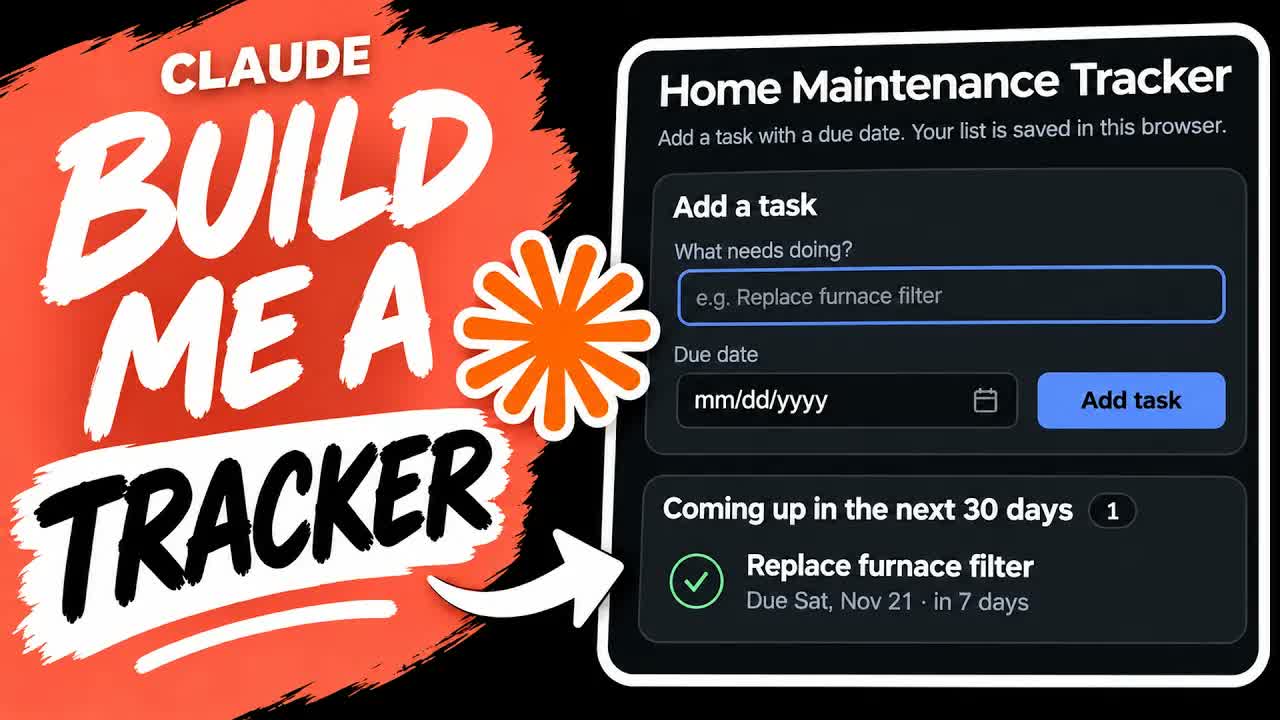
We typed one plain-English request into Claude Code and got a home maintenance tracker, which Claude built and opened in the browser for us. Here is the request, what Claude built, and the two-minute test to run before you trust it with your list.
The short version: open the Code tab in the Claude desktop app, pick a new folder, and paste the request below. Claude built the tracker as a single web page file and opened it for us. Claude says your list is saved in the browser you open it with, not in the folder, so add a test task, reload the page and make sure it is still there. The Code tab needs a paid Claude plan, and you do not need to know how to code.
What did Claude build?
A small app for jobs around the house: changing the furnace filter, cleaning the gutters, testing the smoke alarms. According to Claude’s report, the version from this run lets you:
- add a task with a name, a due date and an optional repeat (once, every month, every 3 months, every 6 months or every year)
- mark a task done. A one-time task moves to a Completed list with an Undo button, and a repeating task jumps ahead to its next due date
- see what is coming up, grouped as Overdue, Due in the next 7 days, and Coming up later
- change a due date or delete a task
- save a backup of your list as a file, and load it back later
Claude writes new code each time, so your tracker may look different from ours, with different buttons. It should still do the same jobs, because the request asks for them.
What do you need first?
- The Claude desktop app, with its Code tab. Anthropic’s desktop app docs explain the setup.
- A paid Claude plan. The Code tab is not part of the free plan, according to the pricing page. Menus can vary by account.
- A new, empty folder for the project, somewhere you will find it again.
If Claude Code is new to you, start with our beginners guide to Claude Code.
How do you do it, step by step?
- Open the Claude desktop app and choose Code, then start a new session. A session is one conversation with Claude Code.
- Choose your new folder. This is where Claude will put the tracker’s file.
- Claude asks whether you trust the folder. Read the warning, then choose Trust workspace if it is the empty folder you just made.
- Pick a model. We used Haiku 5.5 on Medium. If your menu looks different, use what is available.
- Paste the request from the next section and send it.
- Wait while Claude works. It may stop to ask permission before running something. Read what it wants to run before you approve it.
- When Claude finished, it opened the tracker in our web browser. If yours does not open, find the HTML file in your folder and double-click it.

Claude Code can read, change and run files in the folder you pick. Anthropic’s security page covers the permissions in more detail. Our newsletter covered what can go wrong when it has more access than the job needs: Claude was asked to fix page numbers and deleted a year of lecture notes. An empty folder made for this project keeps the risk small. We made the final build in a temporary folder. Use a folder you plan to keep.
The request we used
Word for word from the video:
Build me a simple home maintenance tracker that runs on my computer. I want to add tasks with a due date, mark them done, and see what is coming up. Keep my list on this computer so it is still there when I reopen it. Make it easy to use, and open it for me.It describes the job in everyday words. It names the three things you need to do (add, mark done, see what is next), says what should happen to the list when you come back, and asks Claude to open the finished tool. To make something else, swap in your own subject:
Build me a simple [what you want to keep track of] tracker that runs on my computer. I want to [the things you need to do with it]. Keep my list on this computer so it is still there when I reopen it. Make it easy to use, and open it for me.Before it wrote anything, Claude showed its plan: check the project folder, build the tracker as one HTML file, check it works in a browser, and open it for you.

Words you will meet
- HTML file
- A web page saved on your computer. Double-click it and it opens in your browser.
- Workspace
- The folder Claude Code is allowed to work in.
- Browser storage
- Space in your web browser where a page can keep small amounts of information. Mozilla’s web guide (MDN) explains it here.
- JSON backup
- A plain text file holding your list, which you can save and load back later.
- Console error
- A behind-the-scenes error message from a web page. It does not always mean the page is broken.
Where is your list saved?
According to Claude, the list is stored in the browser you opened the file in, on that computer. It is not saved in your project folder, and it does not carry over to a different browser. Clearing that browser’s site data would delete it.

The tracker includes a backup option for that reason. Claude suggested exporting a backup now and then. To find the tracker again later, open your project folder and double-click the HTML file.
If you want Claude to explain this for your own build, ask:
Before I rely on this, tell me where my list is saved, what could erase it, and how I can back it up.What did Claude test, and what did it skip?
Claude’s report lists what it checked. In a test browser that Claude opened and controlled itself, the sorting, the repeat dates and the Completed list worked, and a test list survived a page reload. It also said what it did not do: it did not test the file opened directly from your computer in your own browser, and the test page logged one console error that Claude did not track down, though the page kept working.
Browsers can treat a page opened straight from your computer differently, which is why that last check is up to you. It takes about two minutes.
How do you test your tracker?
In the video we ran this test on an earlier build, not the final one, so your buttons will differ. The steps are the same for any version:
- Type a task. We used Replace furnace filter.
- Pick a due date. Our earlier build had quick-pick buttons, and we chose 1 week.
- Add the task and check that it appears in the right section.
- Mark it done and check that it moves to the done list.
- Reload the page, then close and reopen the file. The task should still be there.


If anything fails, tell Claude what you did and what happened, in the same session. Then try the repeating tasks and the backup with a sample task before you put your real list in.
What else could you build this way?
Anything that is a list with dates or numbers: a plant-watering schedule, a car service log, a medication refill reminder, a reading list. Keep the first request small and specific. For more ideas, see 12 things you can make with Claude, or try a bigger build with our spending dashboard walkthrough. Claude Code can also tidy files for you, as in our messy folder test.

Frequently asked questions
Do I need to know how to code?
No. You describe the job in plain English. Claude writes the code and opens the result.
Is my list online?
Claude’s report says the list is kept in the browser on your computer, not online. Ask Claude to confirm that for your version.
Can I use it on my phone?
Not as built. The tracker is a file on your computer, and the list lives in that computer’s browser, so it will not appear on your phone. Ask Claude what your options are.
Why does mine look different?
Claude writes new code each run, so the layout and buttons change. The build we test in our video is an earlier one, and the final build added features such as repeating tasks and a backup.
Which model should I pick?
We used Haiku 5.5, a lighter model that suits a small project like this, on Medium effort, a setting for how much Claude thinks before it answers. If the first result is not right, ask for a change.
Made for regular people, by a real person
One AI tool, tip or how-to a day in plain English, tried before we write about it. Curated and edited by a human.
Free forever. Unsubscribe anytime.
You may also like
- Claude Code: Complete Beginners Guide
- Build a Spending Dashboard With Claude
- Claude Organized a Messy Folder
- 12 Things You Can Make With Claude
- Claude for Coding
- How to Use Claude AI
Sources
- Claude Code docs: Desktop app and Security
- Claude pricing
- MDN: Window.localStorage
- Our video: the final build was made in the Claude desktop app’s Code tab with Haiku 5.5 on Medium. The furnace-filter screenshots are from an earlier build. The screenshots are frames from the video, and the request is copied from the screen. Published November 14, 2026.