

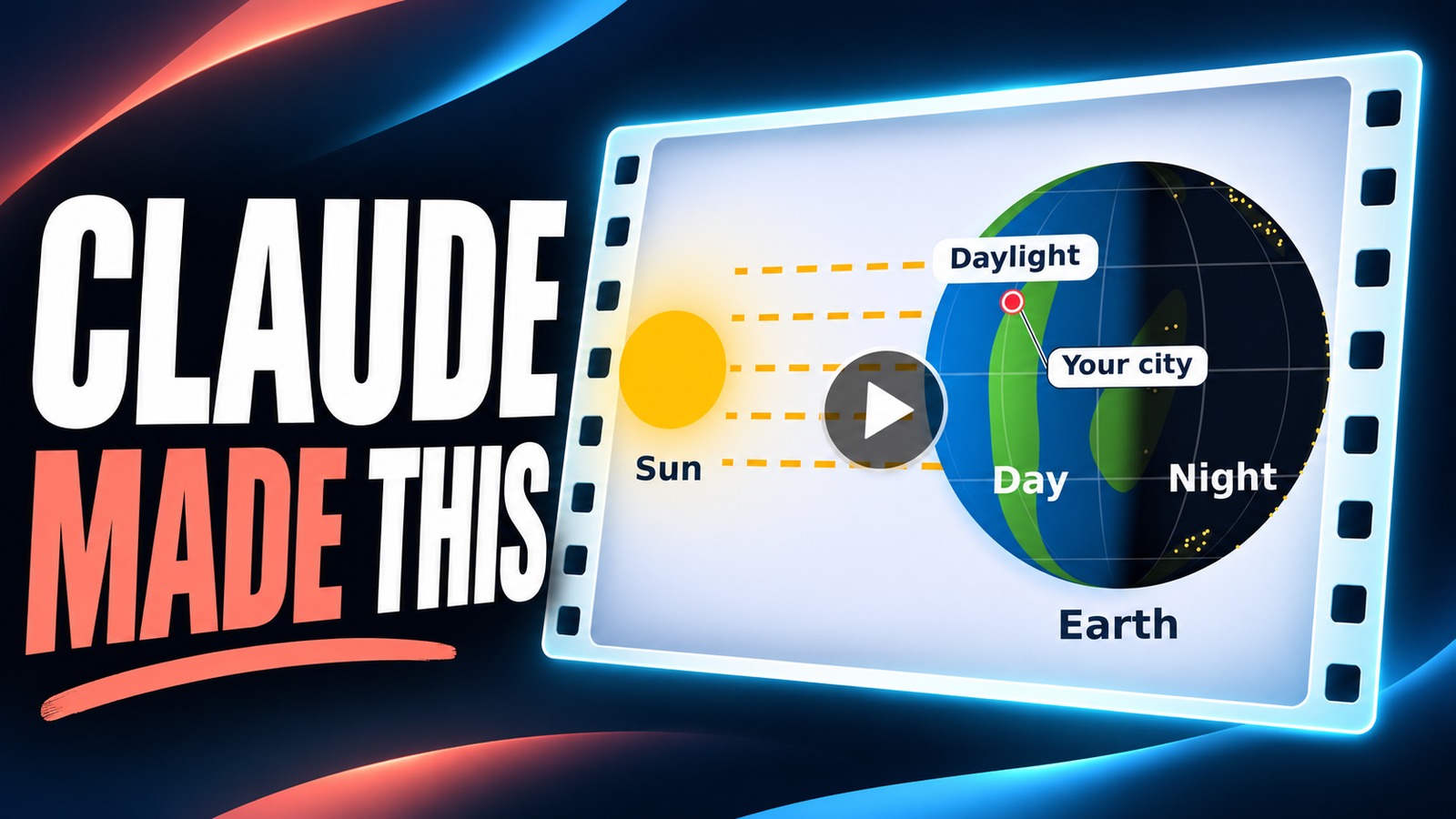
Claude can turn a few plain sentences into a short animated video you can download. We made a 20-second explainer about day and night, fixed it with one follow-up message, and saved the MP4. Below are our two requests, word for word, and what to check before you share the result.
The short version: describe the animation in one message, covering the topic, what moves, the length, the shape of the video and the style. Ask Claude to let you preview it in the chat and download it as an MP4. Claude writes a small program behind the scenes and runs it, then hands back a video that plays beside the conversation. To change it, reply in the same chat and say what to keep and what to fix. In our test, the cheapest model, Haiku 5.5 on Medium effort, made a clean 20-second, full-HD (1080p) video on the first try and a better one after one follow-up. Anthropic says file creation, the feature this relies on, is on every Claude plan, Free included. We tested on a paid plan.
Animated explainers used to need animation software, or someone who knew it. A teacher who wants a 20-second clip on day and night can now just ask. So can a shop owner who wants a moving chart for a slide. We recorded the whole process in a regular paid Claude account, using no add-ons, and kept every file Claude gave us.
What can Claude animate?
In our test, Claude didn’t film anything or use an AI video model like Google’s Veo or OpenAI’s Sora. It wrote a short program that drew every frame, one picture at a time, and then joined the frames into a video file. Our 20-second clip is 600 drawings. That approach handles diagrams and charts well, and people and real places badly.
Good fits
- Science
- Earth turning, the water cycle, phases of the Moon
- Numbers
- A bar chart that grows, a counter, a timeline
- Steps
- A recipe, a process or a checklist appearing one part at a time
Shapes, labels, arrows and simple motion
Poor fits
- People
- Realistic faces, bodies or acting
- Real places
- Footage or photos of the real world
- Sound
- Narration or music, unless you add it yourself later
Use an AI video tool for these
Anthropic also has a dedicated animation tool, Claude Motion, which builds animations from code in the same way and exports them as MP4. It is in beta for Team and Enterprise plans only. You don’t need Claude Motion or a business plan for the method below. It works in a normal chat on a personal plan.
Our AI animation guide and our look at the state of AI video in 2026 compare those.
Words you will meet
- MP4
- The most common video file type. It plays on phones, computers, and in slides and websites.
- Model
- The version of Claude doing the work. Haiku is the fastest and cheapest; Opus and Fable are the most capable.
- Effort
- How much Claude thinks before it answers. Higher effort is more thorough but uses your limits faster.
- Source
- The code Claude wrote to draw the animation. You only need it to make changes later.
- Widescreen
- A 16:9 video, the shape of a TV or a YouTube video. Vertical (9:16) suits phones and Shorts.
Step 1: Pick the model and effort
In a new chat, click the model name under the message box. We chose Haiku 5.5, the cheapest model on our plan, because a simple explainer doesn’t need more. Then open Effort and leave it on Medium, which Claude marks as recommended. Anthropic’s help article on models and effort explains the settings. For a busier animation with many moving parts, try Sonnet or Opus, or raise the effort.
This relies on Claude’s file creation feature, which lets it run code and hand you files. Anthropic switches it on by default for personal plans. If Claude says it can’t make a video, look under Settings > Capabilities and turn on Code execution and file creation (called Create and edit files in the newer Settings layout).

- Haiku 5.5 picked in the model menu.
- The Effort setting.
- Medium, the recommended level. Max warns that it uses 8x or more of your usage.
Step 2: Describe the animation in one message
Good requests answer five questions: what is it about, what is on screen, what moves, how long and what shape, and how it should look. Ours also asked Claude to show a preview and to give us an MP4, and told it not to load any extra skills or plugins, so the test shows what a plain chat can do. Copy it to try the same thing:
I want to make a short animated explainer about why we have day and night. Show the Sun on the left and Earth turning on the right, with one spot moving from daylight into darkness. Keep it scientifically correct, simple and attractive, with big labels and a light background. Make it 20 seconds, widescreen, and silent. Let me preview it here and download the finished video as an MP4. No extra skills or plugins, please.The words “scientifically correct” help. Without them, Claude may draw something that looks right but isn’t, such as the Sun moving across the sky instead of Earth turning.
Step 3: Open the video and check it
Claude worked for a while (we cut the wait from the video), then replied with a short explanation and a video thumbnail. Clicking the thumbnail opened the video in a panel beside the chat, where it played. No website, account or extra app was needed.

- The video in the chat. Click it to open the player.
- The download arrow at the top of the player.
- Claude’s note that the animation is sped up.
Without being asked, Claude pointed out a compromise in its own work: the red spot travels about a third of the way around Earth, roughly 8 hours, in about 11 seconds, so the clip is a time-lapse, and it offered to slow the spin. Read notes like this before you share an explainer.
We then checked the science against NASA’s explanation for students: Earth turns once about every 24 hours, and the side facing the Sun has day. The animation matched. It is still a simplified picture: the Sun and Earth aren’t to scale, and the green land shapes are decoration, not a real map.
Step 4: Ask for changes in the same chat
The first version was correct, but the red dot marking a place on Earth was small and easy to lose, and nothing on screen said time was sped up. We replied in the same chat. Starting with “keep this version” tells Claude to edit, not start over:
Keep this version, but make the red spot easier to follow. Add “Your city” beside it, with a line pointing to the dot. Make the bottom explanation bigger, and add a small “Time sped up” note. Keep the video twenty seconds, and give me a new MP4 plus the editable source.In our recording, the new version was on screen about two and a half minutes after we sent this.

The finished video, unedited. It has no sound, as we asked.
Step 5: Download the MP4
Click the download arrow at the top of the video panel and save the file. The file is a standard MP4 that plays without Claude. Ours opened in QuickTime on a Mac: 20 seconds, silent, 1080p. You can drop it into Google Slides, PowerPoint, Canva or a video editor, or upload it anywhere that takes video.

What is the “editable source,” and do you need it?
Our follow-up asked for the editable source, so Claude also gave us a file ending in .py. That’s the Python program that draws each frame. You don’t need to open or run it. You’d use it later. To change one thing, go back to the same chat and describe it, and Claude builds on what it already made. A Download all button sits under both files.

- The new video.
- The source file Claude wrote.
- Download all saves both.
How to write a request for your own animation
Swap the parts in brackets. Keep the line about previewing and downloading, or Claude may describe the animation instead of making it.
I want to make a short animated explainer about [your topic]. Show [what is on screen], with [the one thing that moves or changes]. Keep it accurate, simple and attractive, with big labels and a [light / dark] background. Make it [length] seconds, [widescreen / vertical / square], and silent. Let me preview it here and download the finished video as an MP4.Some ideas to try:
- For a class: “how the Moon’s phases change over a month,” vertical, 15 seconds.
- For work: “our monthly sales from January to June as bars that grow one by one,” widescreen, 10 seconds. Paste the numbers into the message.
- For family: a birthday invitation where the name, date and place appear one line at a time.
If you’d rather have realistic video than drawings, our daily newsletter covered Google making AI video free for anyone with a Google account, which turns a typed idea into a 1080p clip.
What should you check before you share it?
- The facts. Check every label and claim against a trusted source, as we did with NASA.
- The motion. Watch it all the way through. Does anything move the wrong way, jump or overlap?
- The text. Is every word spelled right and big enough to read on a phone?
- The length and shape. Make sure it matches what you asked for. Ours did: 20 seconds, widescreen.
- Your limits. Each version uses part of your plan’s usage, so put all your changes in one follow-up, as we did. Five small messages cost more.
New to Claude? Start with our guide to using Claude. To pick a model, see Opus vs Sonnet vs Haiku. For interactive pages rather than videos, our Claude Artifacts guide covers what else Claude can build in the chat.

Frequently asked questions
Can Claude make videos?
Yes, simple animated ones. In our test it wrote code that drew each frame and saved the result as an MP4. It didn’t film anything, and it isn’t the tool for realistic footage of people or places.
Is it free?
Anthropic says file creation, which this uses, is available on the Free plan as well as paid plans. Free has lower usage limits, and we only tested on a paid plan, so a long or busy animation may hit them sooner.
Does the animation have sound?
Ours didn’t, because we asked for a silent video. Add music or narration afterward in a video editor.
Do I need to know how to code?
No. Claude writes and runs the code. You only describe what you want and download the file.
Can I make a vertical video for TikTok or YouTube Shorts?
Yes. Ask for a vertical (9:16) video instead of widescreen.
Made for regular people, by a real person
One AI tool, tip or how-to a day in plain English, tried before we write about it. Curated and edited by a human.
Free forever. Unsubscribe anytime.
You may also like
- Claude Artifacts: Create Documents, Code & Visualizations
- Claude’s New Whiteboards, Tested
- AI Animation: From Text to Animated Video
- Build a YouTube Shorts Factory with Claude Code + Remotion
- Claude Opus vs Sonnet vs Haiku
- How to Build Presentations with Claude
- The State of AI Video in 2026
- How to Use Claude AI
Sources
- Claude Help Center: Change the model, effort and thinking settings
- Claude Help Center: Create and edit files with Claude
- Claude Help Center: Get started with Claude Motion
- NASA: What Is Earth? (grades 5 to 8)
- Beginners in AI Tutorials: Claude Can Make Animations. Here’s How. (November 13, 2026)
- Our test: a paid personal Claude account in Chrome on a Mac, November 13, 2026, Haiku 5.5 on Medium effort, no extra skills or plugins. Screenshots and the animation from that session.