

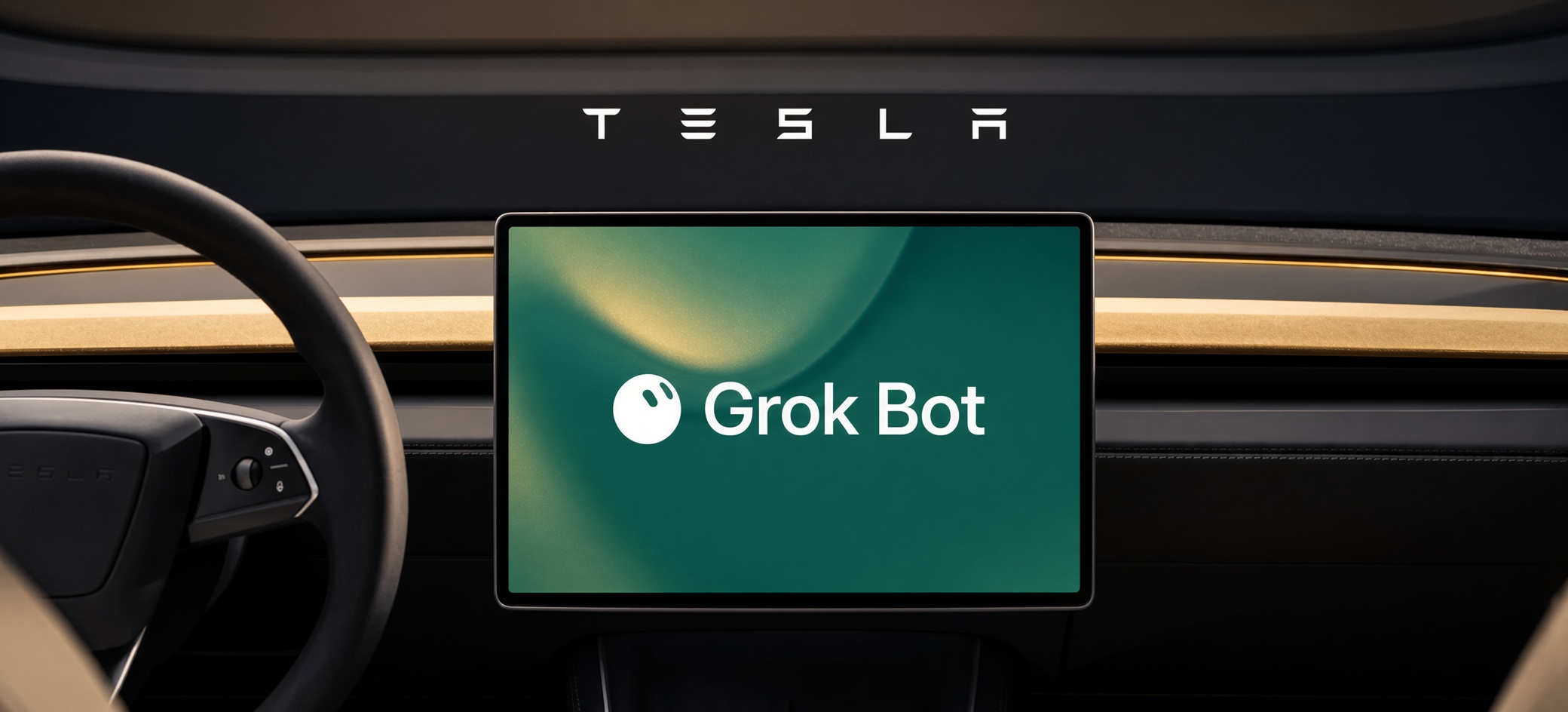
The short version: Since September 22, 2026, the Grok voice assistant in newer Teslas can work with your email and calendar through Connectors, and that part is open to everyone with a compatible car. Grok Bot, the part that runs errands such as ordering coffee or booking a table, only works in the car on the top SuperGrok Heavy plan for now.
Skip if: Your Tesla has an older Intel touchscreen computer. Grok isn’t available on those cars yet, and our Grok guide covers the phone and web versions instead.
On September 22, Tesla posted that Grok “can now do meaningful work for you.” If you drive a recent Tesla, the voice assistant you may have used for directions and music can now read your inbox, update your calendar and, on one plan, place orders for you.
There is no new app to install. Everything happens inside the Grok voice assistant already in the car. What you can do depends on two things: which computer your car has, and which Grok plan you pay for.
Two new abilities arrived on September 22
Grok has been in Teslas since mid-2025. It could already navigate, place phone calls, play music, change the temperature and open the glove box, according to Tesla’s Grok support page. The September update added two layers on top of that:
| Connectors | Grok Bot tasks | |
|---|---|---|
| What it does | Links Grok to your accounts so it can “manage your inbox, clean up your calendar, or talk through existing files/chat/tasks” | Runs multi-step errands, “like placing your usual coffee order, booking a reservation, or scheduling an appointment” |
| Who gets it in the car | All Grok users | SuperGrok Heavy subscribers only, “with more tiers to follow” |
| Source | @Tesla, September 22; availability from SpaceXAI’s Connectors docs | Same Tesla thread |
A connector is a link between an AI assistant and one of your apps. If the word is new to you, our guide to connectors, plugins and marketplaces explains it in two minutes. Grok Bot is an AI agent from SpaceXAI, the company behind Grok (formerly called xAI), which keeps working on a task until it’s done. We tested Grok Bot on real work in August.
Does your Tesla get it?
Tesla lists three requirements for Grok:
- An AMD processor in the infotainment computer (the computer that runs the touchscreen).
- Vehicle software version 2025.26 or later.
- Premium Connectivity (Tesla’s paid in-car data plan) or a Wi-Fi connection. On the road, that means Premium Connectivity.
To check the processor, tap Controls, then Software, then Additional Vehicle Information on the touchscreen, and look at the infotainment processor line. If it says AMD, you’re set. If it says Intel, Grok isn’t available on your car yet.
You may have heard of HW3 and HW4. Those are the self-driving computers, and they don’t decide whether you get Grok. There is no official list of countries for the new features yet, and every demo we found was in North America.
How do you set up Connectors?
Tesla’s instructions are one line long: “Open the Grok app → tap the + icon → New Connector → pick your service & sign in. Once connected, Grok can use it automatically.”
Tesla doesn’t say whether it means the car screen or your phone. The easy route is the Grok app on your phone, while you’re parked:
- Open the Grok app and sign in with the same Grok account you use in the car.
- Tap the + icon, then New Connector.
- Pick a service, such as your email or calendar, and sign in to it.
- Back in the car, ask Grok something that needs it: “What’s on my calendar this afternoon?”
You need to be signed in to your Grok account in the car for this to work. Tesla says that if you aren’t, the car will tell you when you need to sign in. Connectors belong to your Grok account, so the ones you add on your phone should be there in the car once you’re signed in. Our Grok connectors guide lists which services you can connect.
Three ways to start talking to Grok
- Press and hold the microphone button on the steering wheel.
- Tap the App Launcher, then Grok.
- Say “Hey Grok.” This one is off until you switch it on under Controls, then Audio, then Grok Settings.
You can also choose Grok’s voice and personality. Tesla describes the range as “Storyteller to Unhinged.” Grok is still labeled beta in Tesla’s support page.
What can you ask it to do?
With Connectors on, these are the kinds of requests Tesla’s announcement points to:
- “Read me anything important that came in this morning.”
- “Move my 3 p.m. call to tomorrow.”
- “What did Sarah say about the budget in the shared doc?”
With Grok Bot on the Heavy plan, it can go further and act on the web: order your usual coffee, book a restaurant, or make an appointment. Sawyer Merritt, who had early access, described one use case: ask for the coffee, let the car drive you there on Full Self-Driving (Supervised), which still needs you watching the road, and the order is waiting when you arrive.
Grok can place calls but can’t send text messages yet, the fan site Not a Tesla App reports. There’s also no official list of which services Grok Bot can order from, so treat coffee chains and restaurant apps you see in demos as examples, not a guarantee.
The plan trap: your Grok subscription may not cover the car
On a computer or phone, Grok Bot comes with several plans, starting at $20 a month through the coding app Cursor (which SpaceX also owns) or $30 a month for SuperGrok, according to Cursor’s plans page and SpaceXAI’s pricing page. In the car, Tesla limits Grok Bot tasks to SuperGrok Heavy. We lined the plans up side by side:
| Your plan | Connectors in the car | Grok Bot on computer or phone | Grok Bot tasks in the car |
|---|---|---|---|
| Free Grok account | Yes | No | No |
| SuperGrok ($30/month) | Yes | Yes | Not yet |
| SuperGrok Plus ($100/month) | Yes | Yes | Not yet |
| SuperGrok Heavy | Yes | Yes | Yes |
| Cursor Pro ($20/month) | Depends on your Grok account | Yes | Tesla hasn’t said |
SpaceXAI’s pricing page doesn’t list a price for Heavy. Reports put it at about $300 a month, and some mention a lower introductory price we couldn’t confirm. Tesla says more plans will follow, without a date.
Is it safe to let Grok act for you while you drive?
On privacy, Tesla’s support page says your conversations “remain anonymous to Tesla and are not linked to you or your vehicle.” SpaceXAI processes them. When Grok places a call, it reads your contacts in the car, and “your contacts are not sent to SpaceXAI.” Anything that uses your location needs you to opt in to Share precise location.
Connectors add one thing to think about. Once your email and calendar are linked, SpaceXAI’s systems can read them to answer you. Connect only the accounts you’d be comfortable having read aloud in a car with passengers.
Then there’s spending. On a computer, Grok Bot lets you write Auto-review rules in plain English, and its security guide gives the example “ask first before sending any external email.” A rule asking it to check with you before any purchase works the same way. Tesla hasn’t said whether the car asks before Grok Bot pays for something, or whether those rules carry over to the car, so adding one before your first order is a sensible precaution.
Where you still matter
Grok will read you an email at highway speed, but it won’t know you’re merging. Save long replies and anything upsetting for when you’re parked.
How it compares with ChatGPT and Claude in the car
Teslas don’t have Apple CarPlay, so ChatGPT and Claude can’t sit on the car’s screen the way they can in many other cars. Grok is the only AI assistant built into a Tesla. In CarPlay cars, ChatGPT and Claude answer questions by voice, but they can’t change your climate settings or open the glove box. Grok in a Tesla can do both, and it has a wake word. ChatGPT and Claude are still there on your phone for anything Grok doesn’t cover.
For a wider look at talking to AI, see our voice modes comparison.
Our verdict
If your Tesla has the AMD computer, set up Connectors this week. They cost nothing beyond the connectivity you already need for Grok, and hearing your next meeting and first few emails on the drive in saves a few minutes of phone-checking at your desk.
Don’t upgrade to Heavy just to get Grok Bot in the car. The errands on offer take a minute on your phone once you’ve parked. Wait for the cheaper plans Tesla says are coming, and decide based on whether you’d use Heavy away from the car too. Our Grok pricing guide breaks the plans down.
FAQ
Do I need a Grok subscription to use Grok in my Tesla?
Not for basic Grok. Tesla says no account or subscription is required “at this time,” though usage is limited until you sign in. Connectors need a signed-in Grok account, and Grok Bot tasks need SuperGrok Heavy. If you want to try Grok Bot on a computer first, Cursor offers a free trial.
Did I need a software update?
You need version 2025.26 or later for Grok itself. Tesla hasn’t named a separate version for Connectors or Grok Bot, and the features appear to switch on through your Grok account.
Does it work on HW3 cars?
HW3 isn’t the deciding factor. What matters is the infotainment processor. If it’s AMD, Grok works; if it’s Intel, it doesn’t yet.
Can Grok send text messages for me?
Not yet, according to early reports. It can place phone calls.
Is it the same as Grok Bot on my computer?
It’s the same Grok Bot, reached by voice through the car. The difference is the plan. The car needs Heavy for now, while the computer version comes with cheaper plans.
Made for regular people, by a real person
A free daily email that tells you when features like this land and whether they’re worth turning on. Written by a human, in plain English.
Free forever. Unsubscribe anytime.
Sources
- Tesla Support, Grok (requirements, setup, privacy; checked September 23, 2026)
- @Tesla announcement thread (September 22, 2026) and the Connectors setup post
- SpaceXAI, Grok plans and pricing
- Cursor, Grok Bot access and plans
- Cursor, Grok Bot security and Auto-review
- Sawyer Merritt, early-access report (September 22, 2026)
- Not a Tesla App, Tesla adds Grok Bot to vehicles (September 22, 2026)
Related guides
- Grok Bot: I tested it on real work
- AI connectors vs plugins, explained
- Grok connectors: the services you can link
- Grok pricing explained
- What is Grok?
- Why Grok could be the sleeper AI of 2026
- AI voice modes compared
- The mobility and transportation frontier
Two ways to go further
The AI Prompt Library
1,000+ ready-to-use prompts for Claude, ChatGPT, and Gemini. Stop staring at a blank box.
Get it for $39 →2-Hour Live AI Crash Course
A private, beginner-friendly session across Claude, ChatGPT, Gemini, and the wider landscape.
Book for $125 →