
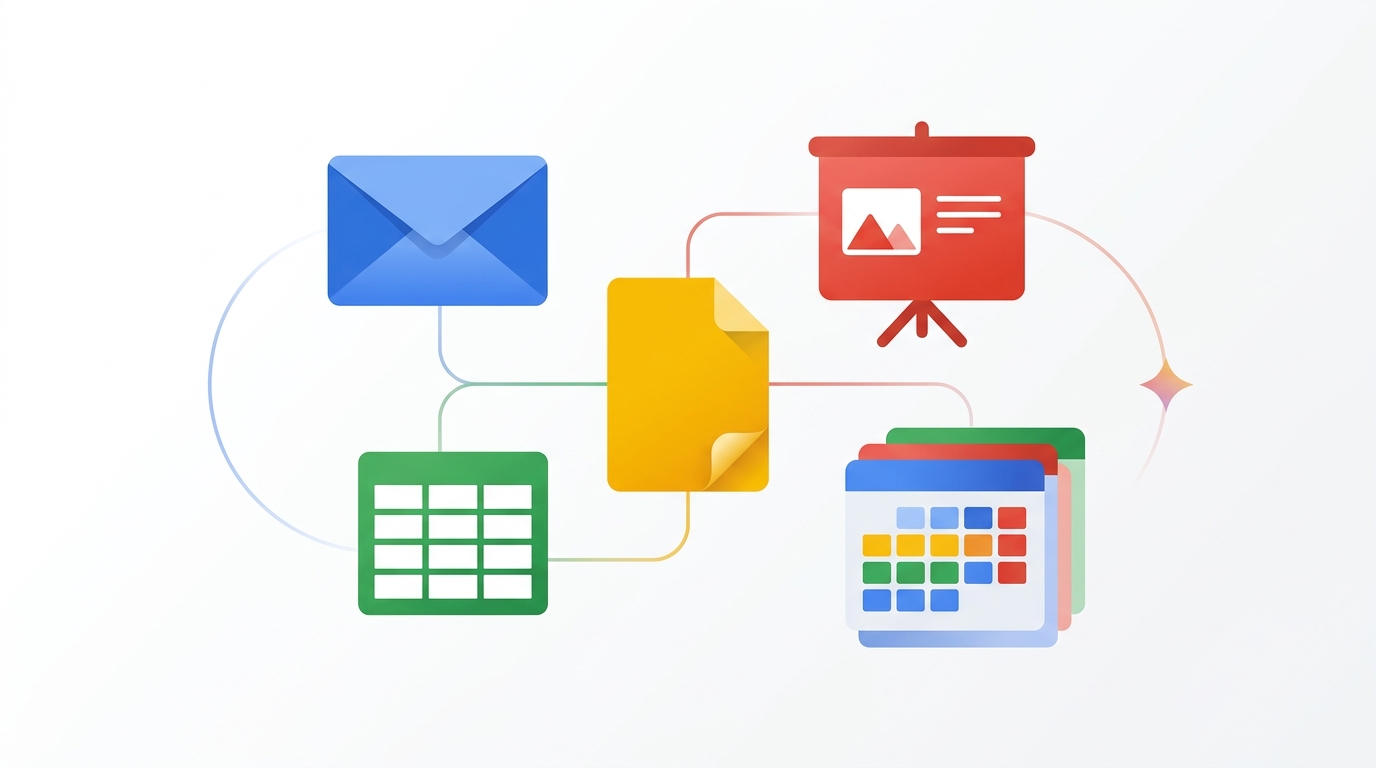
What it is: Gemini for Google Workspace — everything you need to know
Who it’s for: Beginners and professionals looking for practical guidance
Best if: You want actionable steps you can use today
Skip if: You’re already an expert on this specific topic
AI Summary: Gemini is Google’s AI assistant built directly into Workspace apps including Gmail, Docs, Sheets, Slides, Drive, and Calendar. This pillar guide covers everything from initial setup to advanced workflows, with real productivity benchmarks showing 30-60% time savings on routine tasks. Whether you use one Google app or all of them, this guide maps Gemini’s capabilities to your actual workflow.
Bottom Line Up Front: Gemini transforms Google Workspace from a collection of productivity apps into an AI-powered operating system for work. At $20/month for the Business add-on (or included with select Enterprise plans), it delivers measurable ROI within the first week for anyone spending 2+ hours daily in Google apps.
Key Takeaways
- Gemini works natively in Gmail, Docs, Sheets, Slides, Drive, Meet, and Calendar as of March 2026
- The Business tier ($20/user/month) unlocks Gemini across all Workspace apps with 1TB of AI-processed storage
- Gmail’s Gemini drafts contextual replies that reference previous thread content, saving an average of 11 minutes per hour of email processing
- Sheets integration handles formula generation, data analysis, and pivot table creation through natural language
- Enterprise adoption hit 9 million paying Workspace seats with Gemini enabled by Q1 2026, per Google Cloud earnings reports
What Is Gemini for Google Workspace?
Gemini for Google Workspace is Google’s integrated AI assistant that operates directly inside the productivity tools millions already use daily. Unlike standalone AI chatbots that require copying and pasting between apps, Gemini reads your existing documents, emails, spreadsheets, and presentations to provide contextual assistance without ever leaving your workflow.
Google announced the Gemini Workspace integration at Cloud Next 2024 and rolled it out progressively through 2025. By March 2026, every major Workspace application has Gemini capabilities, though feature depth varies by app and pricing tier. According to a Google Cloud report, organizations using Gemini in Workspace report a 28% reduction in time spent on document creation and a 35% decrease in email response time.
The underlying technology uses Google’s Gemini 1.5 Pro model with specific fine-tuning for each Workspace application. This means the AI understands spreadsheet formulas differently than email tone, and presentation structure differently than document formatting. For a broader understanding of how Gemini compares to other AI models, the Grokipedia entry on Gemini provides an excellent technical overview of its architecture and capabilities.
ADAPT Framework: Your Gemini Workspace Strategy
To get maximum value from Gemini across Workspace, follow the ADAPT framework designed specifically for AI tool adoption in established workflows:
A – Assess Your Current Workflow: Before enabling Gemini, audit where you spend time in Google apps. Track one typical week: how many emails do you write, how often do you create documents, how much time goes to spreadsheet work? This baseline tells you where Gemini will deliver the highest return. Most users discover that email consumes 40-60% of their Workspace time, making Gmail the highest-impact starting point.
D – Deploy Incrementally: Enable Gemini in one app first. Gmail is the recommended starting point because the feedback loop is fastest: you write an email, Gemini suggests improvements, you see the result immediately. After one week of Gmail, add Docs. After two weeks, add Sheets and Slides.
A – Automate Repetitive Patterns: Identify your most repeated tasks. Do you write similar status update emails every week? Create monthly report documents with the same structure? Build quarterly slide decks? These repetitive patterns are where Gemini saves the most time because it learns your formatting preferences and content patterns.
P – Personalize Through Feedback: Gemini improves when you edit its outputs rather than regenerating from scratch. When it drafts an email that is too formal, adjust the tone manually. The model adapts to your communication style over sessions. According to Google’s internal benchmarks, users who consistently edit rather than regenerate see 40% better first-draft quality within 30 days.
T – Track and Optimize: Use Google Workspace’s built-in analytics (Admin Console > Reports > Gemini Usage) to measure adoption and impact. Track metrics like average email composition time, document creation speed, and meeting preparation efficiency. These numbers justify continued investment and identify underused features.
Gemini in Gmail: AI-Powered Email Management
Gmail’s Gemini integration is the most mature and widely used Workspace AI feature. The “Help me write” button appears in the compose window, but that is just the surface. Gemini in Gmail handles contextual replies that reference previous messages in a thread, summarizes long email chains into bullet points, extracts action items from conversations, and drafts responses that match your established writing tone.
The real productivity gain comes from thread summarization. A 47-message thread about a project decision that would take 20 minutes to read gets condensed into a structured summary with key decisions, open questions, and assigned action items in under 10 seconds. For teams managing 100+ emails daily, this single feature recovers 45-90 minutes per day according to a Stanford HAI study on AI-assisted email productivity.
To activate Gmail’s Gemini features, open any email thread and look for the Gemini sparkle icon in the top right. Click “Summarize this email” for instant thread digests, or click “Reply” and then the “Help me write” option to generate contextual responses. Pro tip: type a brief instruction like “decline politely, suggest next week instead” and Gemini crafts a professional reply that references the specific meeting or request from the original email.
Gemini in Google Docs: Writing and Editing at Scale
Google Docs was the first Workspace app to receive deep Gemini integration, and it shows. The AI handles document creation from prompts, content expansion, tone adjustment, grammar correction, summarization, and format conversion. But the feature most professionals overlook is contextual rewriting: select any paragraph, right-click, and choose “Help me rewrite” to get alternatives that maintain your document’s voice while improving clarity or adjusting formality.
For longer documents, Gemini’s “Help me organize” feature analyzes your draft and suggests structural improvements: moving sections for better flow, adding headers where content shifts topics, and identifying gaps in your argument. A McKinsey workplace productivity analysis found that document restructuring typically takes 25% of total writing time, making this feature alone worth the subscription for frequent writers.
The integration with Gemini for Google Drive means you can reference other documents while writing. Type “@” followed by a document name, and Gemini can pull relevant data, quotes, or statistics from that file into your current document. This cross-document intelligence eliminates the constant tab-switching that fragments deep writing work.
Gemini in Google Sheets: Data Analysis Without Formulas
Sheets integration solves the biggest spreadsheet pain point: most users know what analysis they want but cannot write the formula to get it. Gemini accepts natural language requests like “calculate the month-over-month growth rate for column B” or “create a pivot table showing sales by region and quarter” and generates the correct formulas, functions, or table structures.
The AI also handles data cleanup tasks that previously required manual work or complex regex formulas. Requests like “standardize all phone numbers to (XXX) XXX-XXXX format” or “split full names into first and last name columns” execute in seconds across thousands of rows. According to Google’s own usage data, the average Sheets user saves 4.2 hours per month on data formatting tasks alone after adopting Gemini.
For advanced users, Gemini’s chart generation feature transforms data ranges into appropriate visualizations with a single prompt. Describe what you want to show: “create a bar chart comparing Q1 vs Q2 revenue by product line with a trend overlay” and Gemini selects the right chart type, formats it professionally, and applies your Workspace theme colors.
Gemini in Google Slides: Presentation Creation Reimagined
Presentation creation is where Gemini’s multimodal capabilities shine brightest. The “Create a presentation about…” prompt generates a complete deck with structured content, speaker notes, and suggested image placements. But the more practical daily use case is slide-by-slide enhancement: select any slide, ask Gemini to “make this more visual” or “add supporting data points,” and the AI restructures the content with better layouts and data-driven callouts.
The image generation feature, powered by Imagen 3, creates custom illustrations, diagrams, and backgrounds without leaving Slides. This eliminates the stock photo search that typically consumes 20-30% of presentation creation time. For a deeper comparison with standalone AI presentation tools, see our guide on Gemini vs ChatGPT for Google users.
Gemini for Google Drive: Your AI-Powered File Brain
Drive integration turns your file storage into a searchable knowledge base. Instead of remembering file names or folder structures, ask Gemini: “Find the Q4 budget spreadsheet that Sarah shared last November” or “Which documents mention the Johnson account?” The AI searches file contents, not just titles, surfacing relevant files from across your entire Drive. Read the full breakdown in our Gemini for Google Drive deep-dive.
The summarization feature works across file types. Point Gemini at a 50-page PDF, a recorded meeting transcript, or a folder full of research documents, and it generates structured summaries with key findings, action items, and cross-references. Organizations with large document repositories report the biggest productivity gains from this feature, with knowledge workers finding information 3.7x faster than traditional search according to Google’s enterprise case studies.
Gemini for Calendar and Task Management
Calendar’s Gemini features focus on intelligent scheduling and meeting preparation. Before any meeting, Gemini can generate a briefing document by pulling relevant emails, documents, and previous meeting notes related to the attendees and topic. This “meeting prep” feature alone justifies Gemini for executives and client-facing professionals who attend 5+ meetings daily. For detailed workflows, see our dedicated Gemini for Calendar and Task Management guide.
The scheduling assistant goes beyond simple free/busy checks. Describe what you need: “Schedule a 45-minute strategy review with the marketing team, preferably Tuesday or Wednesday morning, not during anyone’s focus time blocks.” Gemini evaluates calendars, preferences, time zones, and working hours to propose optimal slots, then drafts the invitation with an agenda based on recent related communications.
Pricing and Plans: What Gemini Workspace Costs
As of March 2026, Gemini for Workspace is available in three tiers. The Business Standard plan at $14/user/month includes basic Gemini features in Gmail and Docs. The Business Plus plan at $22/user/month adds Gemini to Sheets, Slides, and Meet. The dedicated Gemini Business add-on at $20/user/month can be added to any existing Workspace plan for full AI access across all apps.
For enterprise customers, the Gemini Enterprise add-on at $30/user/month includes advanced features like custom model fine-tuning on company data, extended context windows for processing longer documents, and enhanced security controls including data residency options. Google also offers a 14-day free trial for organizations to evaluate Gemini’s impact before committing.
The ROI calculation is straightforward: if Gemini saves each user 30 minutes per day (a conservative estimate based on Google’s published case studies), that is 10+ hours per month. At an average knowledge worker salary of $75,000/year ($36/hour), that represents $360/month in recovered productivity against a $20-30/month cost. Small business owners particularly benefit, as our Best Gemini Workflow for Small Business guide demonstrates with real examples.
Security and Privacy Considerations
Google’s Workspace AI features operate under the same data processing agreements as the core Workspace suite. For Business and Enterprise customers, Google states that Workspace data is not used to train Gemini foundation models. Data stays within your organization’s tenant, and Gemini’s responses are generated in real-time without persistent storage of queries or outputs.
Administrators control Gemini access at the organizational unit level through the Admin Console. This means you can enable Gemini for the marketing team while keeping it disabled for the legal department if your compliance requirements demand it. Audit logs track all Gemini interactions for regulatory compliance, and data loss prevention (DLP) rules apply to AI-generated content the same way they apply to human-created content.
Getting Started: Your First Week with Gemini
Day 1-2: Enable Gemini in Gmail. Use “Summarize” on your 5 longest email threads. Draft 10 replies using “Help me write” and edit each one to match your voice. Day 3-4: Open Gemini in Docs. Create one new document from a prompt and rewrite three paragraphs in an existing document. Day 5: Try Sheets. Convert three natural language questions about your data into formulas using Gemini. By end of week one, you will have a clear picture of where Gemini fits your specific workflow.
For teams, designate one “Gemini champion” per department who completes the first week workflow and then trains colleagues. Google’s own data shows that peer-trained teams adopt Gemini 2.3x faster than teams relying solely on self-directed exploration. For a broader comparison of AI assistants for Google-centric workflows, see our Gemini for Chrome browser integration guide.
Frequently Asked Questions
Does Gemini for Workspace use my company data to train Google’s AI models?
No. Google explicitly states that Workspace customer data processed by Gemini is not used to train foundation models. Your emails, documents, and spreadsheet data remain within your organization’s data boundary. This applies to all Business and Enterprise tier customers. Consumer Gmail accounts have different terms, so businesses should ensure they are on a Workspace plan, not free Gmail, for these protections.
Can I use Gemini in Workspace offline or does it require internet access?
Gemini features require an active internet connection because the AI processing happens on Google’s cloud infrastructure. Offline mode in Google Docs, Sheets, and Slides continues to work for basic editing, but Gemini features like “Help me write,” summarization, and formula generation are unavailable offline. Google has not announced plans for on-device Gemini processing for Workspace as of March 2026.
What is the difference between Gemini in Workspace and the standalone Gemini app?
The standalone Gemini app (gemini.google.com) is a general-purpose AI chatbot similar to ChatGPT. Gemini in Workspace is deeply integrated into each app with context about your specific files, emails, and data. The Workspace version can read your Drive files, reference your email history, and understand your spreadsheet data. The standalone app cannot access any of this information unless you manually paste it in. Both use the same underlying Gemini model, but the Workspace version has access to your organizational context.
How does Gemini for Workspace pricing compare to Microsoft Copilot for Microsoft 365?
Microsoft Copilot for Microsoft 365 costs $30/user/month with a minimum of 300 seats for enterprise customers (reduced from the original minimum in early 2026). Google’s Gemini Business add-on is $20/user/month with no seat minimum, making it more accessible for small and mid-size businesses. Feature parity is roughly equivalent as of March 2026, though each excels in its native ecosystem. For a detailed comparison, see our Gemini vs ChatGPT for Google Users guide.
Which Google Workspace apps work best with Gemini for beginners?
Gmail is the best starting point because the tasks are simple (write, reply, summarize), the feedback is immediate, and most people spend significant time there. Google Docs is second because “Help me write” and rewriting features are intuitive. Sheets is third because formula generation from natural language removes the biggest barrier to spreadsheet productivity. Slides and Meet benefit from Gemini but require more intentional use to see consistent value.
Start Mastering Gemini for Workspace Today
Ready to unlock the full potential of Gemini across every Google app? Our Complete Gemini Guide includes step-by-step setup walkthroughs, 50+ prompt templates for each Workspace app, and a 30-day adoption playbook used by teams at companies from 5-person startups to Fortune 500 enterprises.
Sources: Grokipedia – Gemini AI | Stanford HAI | McKinsey Digital
Stay ahead of AI developments that matter. Subscribe to our free newsletter for weekly Workspace AI tips, new feature alerts, and productivity workflows delivered every Monday.
Explore This Topic
Go deeper with our specialized guides:
- Gemini for Google Drive: Search and Analyze Your Files with AI
- Gemini for Chrome: AI Built Into Your Browser
- Gemini vs ChatGPT for Google Users: Which AI Fits Your Workflow?
- Best Gemini Workflow for Small Business Owners
- Gemini for Calendar & Task Management
Sources
This article draws on official documentation, product pages, and industry reporting. Specific sources are linked inline throughout the text.
Last reviewed: April 2026
Leave a Reply